Let’s be honest. Figuring out the right image sizes for social media can feel like a never-ending game of catch-up. Platforms update their specs constantly, and what worked last month might get awkwardly cropped today.
But getting your image sizes right matters. A lot. Pixelated photos or images that cut off your messaging won’t just look unprofessional; they’ll hurt engagement and make people scroll right past your content.
So here’s a breakdown of the image sizes you need for Facebook, Instagram, LinkedIn, and X. All dimensions are listed in pixels (px). Keep this handy, and you’ll save yourself the endless googling.
Last Updated: 10/23/2025
Facebook Image Sizes
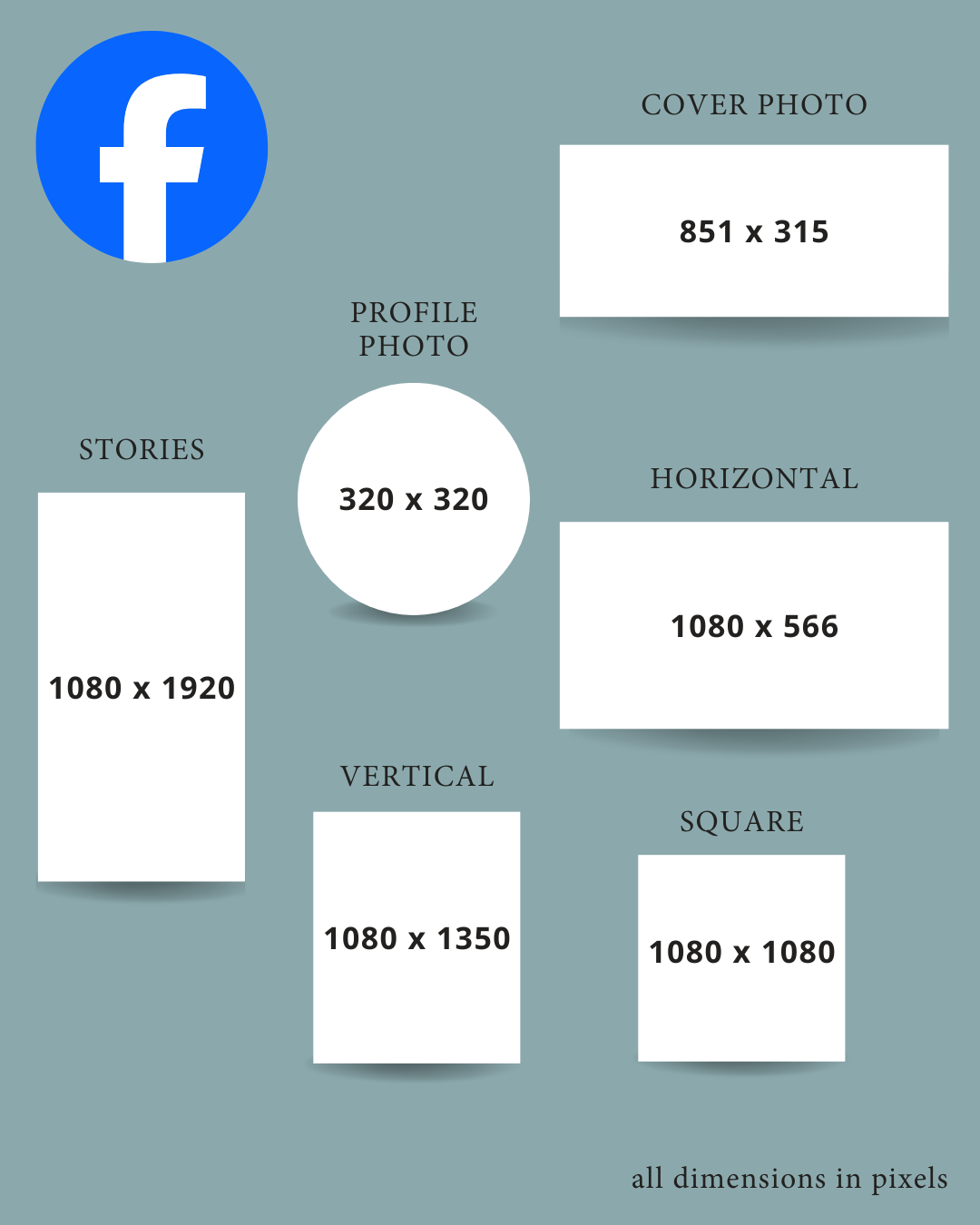
Profile Photo: 320 x 320 px (displays as a circle)
Cover Photo: 851 x 315 px for profiles and pages
Post Images:
- Horizontal: 1080 x 566 px
- Vertical: 1080 x 1350 px
- Square: 1080 x 1080 px
Stories: 1080 x 1920 px
Remember that your profile photo overlaps the bottom left corner of your cover photo, so keep important elements away from that area. And for Stories, leave space at the top and bottom for your profile name and the viewing controls.
Instagram Image Sizes
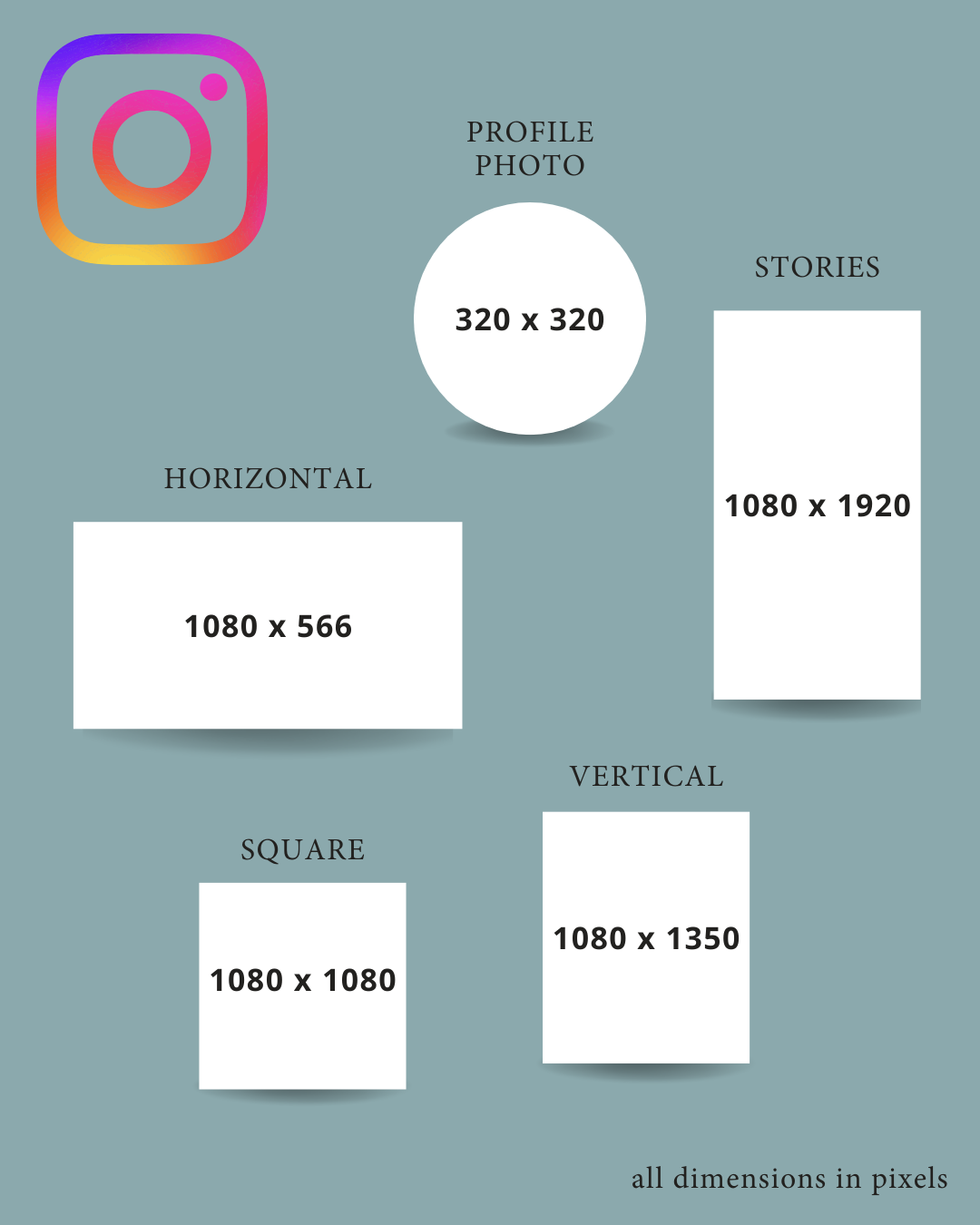
Profile Photo: 320 x 320 px (displays as a circle)
Post Images:
- Horizontal: 1080 x 566 px
- Vertical: 1080 x 1350 px
- Square: 1080 x 1080 px
Stories: 1080 x 1920 px
Reels Thumbnails: 1080 x 1920 px
All photos appear in vertical format on your grid, regardless of how they’re sized in the feed. If you’re curating a cohesive grid aesthetic, keep that 3:4 vertical crop in mind when designing your images.
Tip: You can edit your current grid through the Instagram app on your phone only (editing isn’t available on desktop). Open the Instagram app, go to your profile, select the image you want to edit, and click the three dots in the top right corner. Select “Adjust Preview,” use your fingers to zoom and position the image, then select “Done” to apply the changes.
When creating Stories, keep important content away from the top and bottom 250 pixels where your profile info and buttons will appear.
LinkedIn Image Sizes
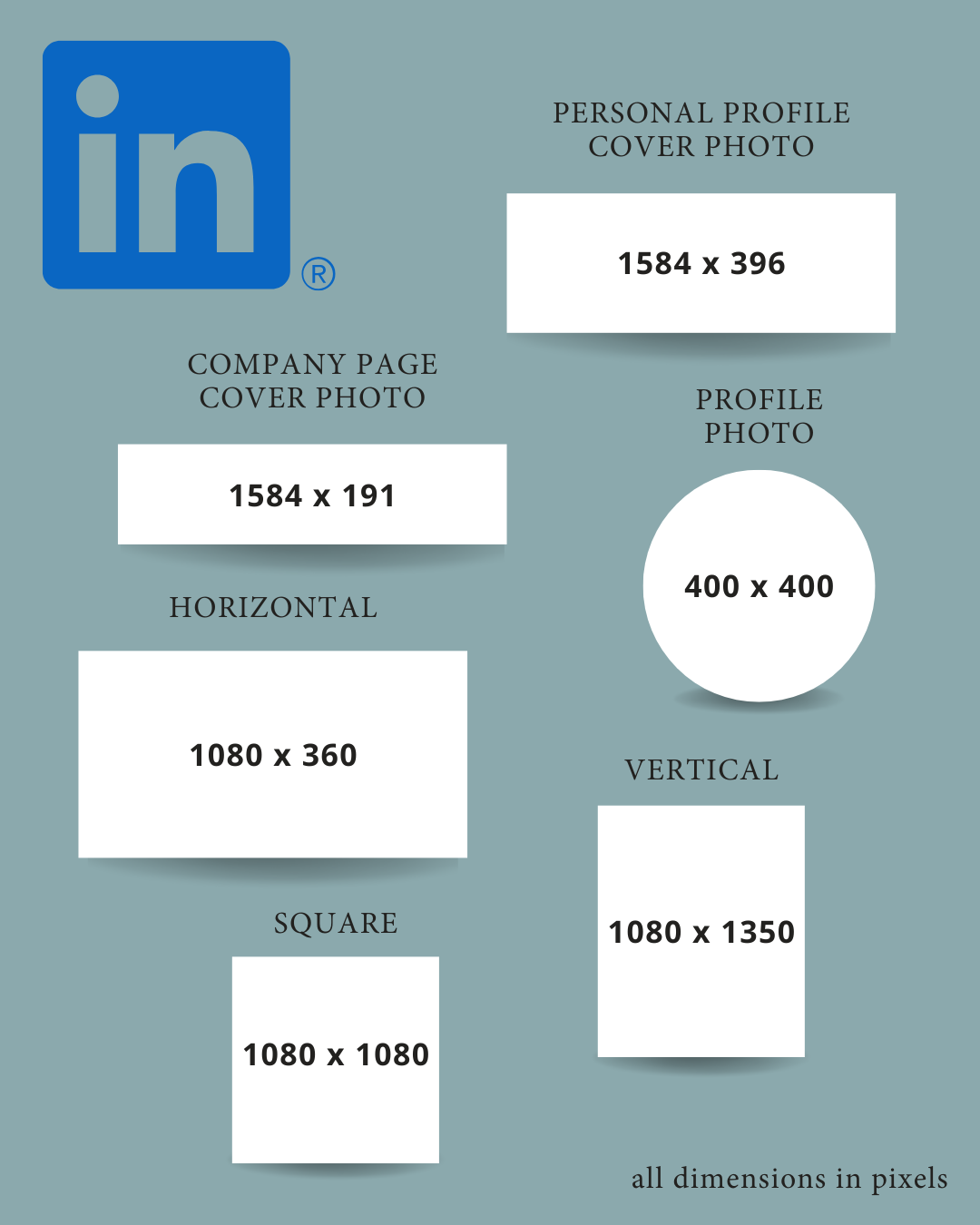
Profile Photo: 400 x 400 px (displays as a circle on personal profiles, square on company pages)
Personal Profile Cover Photo: 1584 x 396 px
Company Page Cover Photo: 1128 x 191 px
Post Images:
- Horizontal: 1080 x 360 px (minimum width of 1080 px)
- Vertical: 1080 x 1350 px
- Square: 1080 x 1080 px
LinkedIn tends to be a bit more forgiving with cropping if your text and key elements are centered. But cover photos display differently on mobile versus desktop, so always check both before publishing.
X (Formerly Twitter) Image Sizes
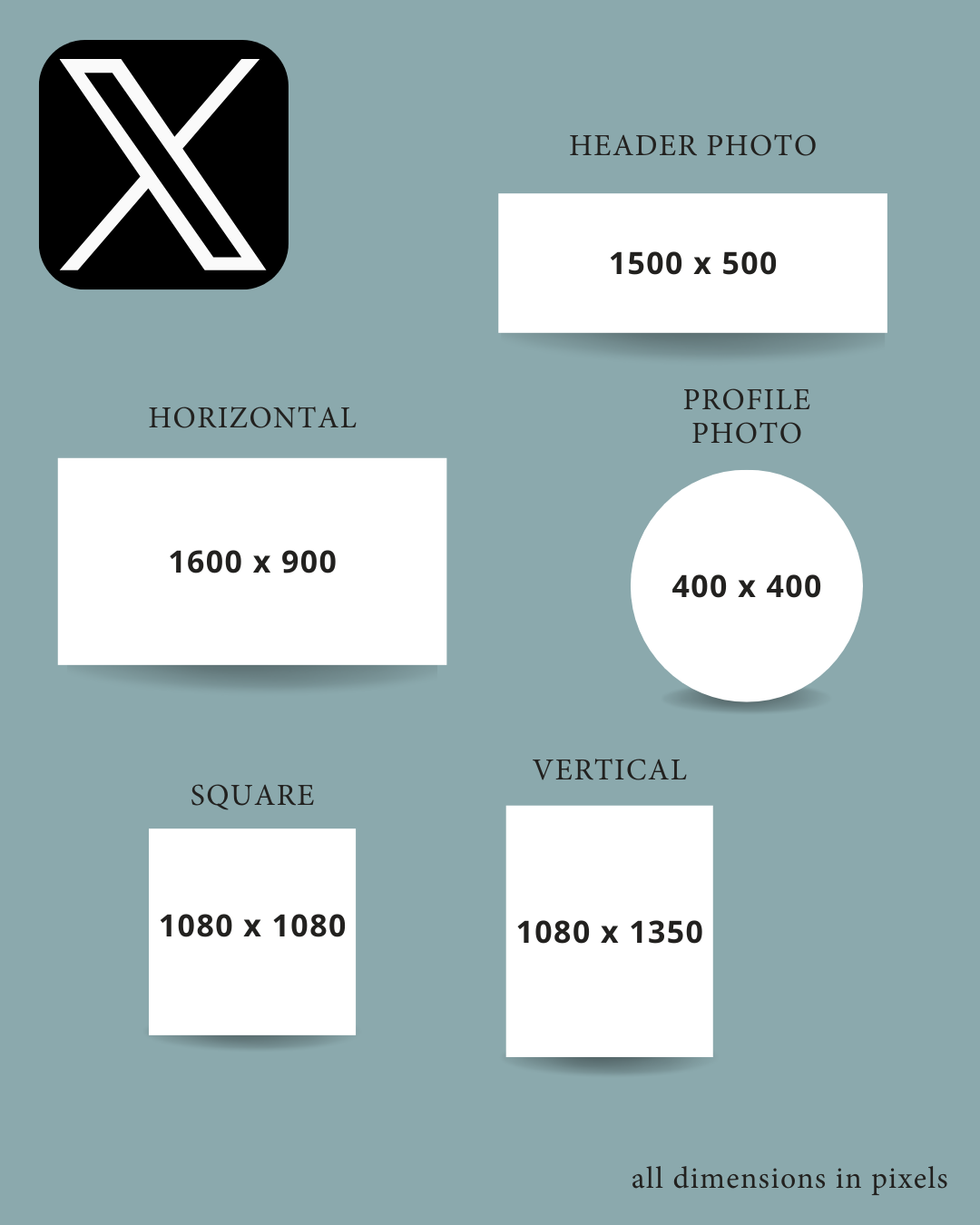
Profile Photo: 400 x 400 px (displays as a circle for most accounts)
Header Photo: 1500 x 500 px
Post Images:
- Horizontal: 1600 x 900 px
- Vertical: 1080 x 1350 px
- Square: 1080 x 1080 px
X made life easier a few years back by eliminating the aggressive auto-cropping on images. Now, most standard images display without awkward cuts or distortions.
Final Thoughts
Social media image sizes change frequently, and staying on top of them takes time, but it’s worth getting right. Properly sized images look professional, perform better, and ensure your messaging comes through clearly.
Building a consistent, engaging social media presence involves more than just knowing the right pixel counts. It requires strategy, planning, and sometimes a little outside perspective. If you’re looking to elevate your social media game and could use some guidance, let’s talk about how we can help.
Want to stay in the loop when image sizes change? Drop us a note here, and we’ll notify you in your inbox when we update this guide. Or bookmark this page – we’ll keep it current as platforms evolve.